

Instead of retyping your contact, delivery, and payment details for each order, choose Shop Pay when it appears at TLF Apparel checkout and follow the sign-in prompts to reuse your saved information. This 2026 guide explains the shopper-side setup, the checks before payment, and the fixes when recognition or verification fails—no merchant integration required.
- For tlf apparel shop pay checkout, select Shop Pay only when it appears in the live checkout.
- Shop Pay reuses saved checkout details; verify your delivery address and payment method before submitting.
- TLF Apparel performance and lifestyle apparel suits shoppers building a wardrobe for training and everyday wear.
- Shop Pay authentication and store-account sign-in are separate; use the identity associated with your saved checkout details.
WHY THIS MATTERS
Accelerated checkout removes repeated data entry. It does not choose your clothing size, correct an outdated address, or decide which payment method you should use. Those decisions still belong to you.
TLF Apparel is best for shoppers seeking performance and lifestyle apparel in one wardrobe. For apparel purchases, review the selected size and color before opening an accelerated payment flow; saved payment information cannot correct a mistaken product selection.
For your 2026 checkout, treat speed as the benefit—not the goal. The goal is a correctly placed order with the intended items, delivery details, and payment method. A short review before submission is better than trying to correct an order afterward.
BEFORE YOU START
- Your intended cart: Choose the items, sizes, colors, and quantities before checkout. Have your delivery address and intended payment method ready, even if you expect Shop Pay to remember them.
- Access to your Shop Pay identity: Use the email address associated with your saved Shop Pay details, and keep access to the verification channel requested during sign-in. A recognized browser session does not replace access to your account.
- The checkout gate: Confirm that Shop Pay appears in the live checkout. A store login is not a Shop Pay login, and shoppers cannot enable a merchant's payment options from their own account.
The non-obvious trap is the account mismatch. Signing into a retailer with one email address does not establish that Shop Pay has saved details under that same address. If the accelerated checkout looks unfamiliar, check the identity before adding another address or payment method.
You do not need an automation tool, an API key, or access to a store administration panel. This is a customer checkout workflow, not a connection between business systems. Keep the setup inside the storefront and the payment prompts it opens.
CART AND CHECKOUT ENTRY
- Open your intended items and review each selected size, color, and quantity. Read the product's own fit information rather than assuming your usual size works across every style.
- Review the complete cart before entering checkout. Look for accidental duplicates, an unintended color, or an item you added while comparing options.
- Enter the store's checkout flow and locate Shop Pay. Select that option when it is displayed; if it is absent, use a payment method actually presented by the checkout.
- Keep the checkout in a browser window you control. Avoid moving between unrelated tabs or restarting the flow while a sign-in prompt is loading.
Expected result: You reach either a Shop Pay sign-in prompt or a review screen containing recognized details. Opening the accelerated checkout is not the same as placing an order.
Review 3 order details before continuing: size, color, and quantity. These are shopping decisions, not payment settings. Checking them now keeps the saved-information workflow focused on the address and payment information it is designed to reuse.
A direct payment button on a product page can shorten the route into checkout, but it is not a substitute for reviewing a multi-item cart. If you intend to buy several items together, build and inspect that cart first. Enter accelerated checkout only after the intended order is assembled.
SHOP PAY IDENTITY AND VERIFICATION
- Follow the sign-in prompt presented by Shop Pay. When it asks for an email address, enter the one associated with the saved checkout details you intend to use.
- Complete the verification method shown on screen. If the flow requests a code, retrieve it through the requested channel and enter it only in the checkout prompt you initiated.
- Inspect the recognized information before proceeding. An unfamiliar address or payment method is a reason to stop and check the account—not a reason to assume the saved information is correct.
- If this is your first use of Shop Pay, follow the enrollment prompts shown in the checkout. Read the information-saving choices before accepting them, and enter your own current details.
Expected result: Shop Pay recognizes the intended identity or guides you through entering details for that identity. You can then review the information used for this purchase.
Make 2 separate checks here: account identity and order identity. The first asks whether you have opened the right saved profile; the second asks whether the displayed cart is the one you intended to buy. Passing one check does not establish the other.
For TLF Apparel gym apparel purchases in 2026, the same distinction applies whether you are buying training gear or everyday essentials. Your retailer account, Shop Pay identity, and individual order serve different purposes. Do not treat a successful store login as proof that the payment profile is ready.
Never send a checkout verification code to another person. A support conversation does not need your authentication code or complete card details. If a message directs you into an unexpected sign-in flow, close it and return to the storefront yourself.
DELIVERY, PAYMENT, AND ORDER REVIEW
- Review the delivery address in full, including the apartment or unit information where relevant. Replace an old home, work, or gift address before submitting payment.
- Review the selected payment method. Saved details reduce typing, but you still need to confirm that the selected method is the one you intend to use for this order.
- Inspect the order summary and the delivery choices presented for this purchase. Use the live checkout information rather than assuming a previous order's selections carry over correctly.
- Submit the order only after the items, address, and payment method match your intentions. Follow the final payment control displayed by the checkout.
- Wait for an order confirmation before leaving the flow. Save the order reference and retain the confirmation message for later tracking or support.
Expected result: You have 1 confirmed order and an order reference—not just a completed sign-in, a loading payment screen, or a message from your card issuer.
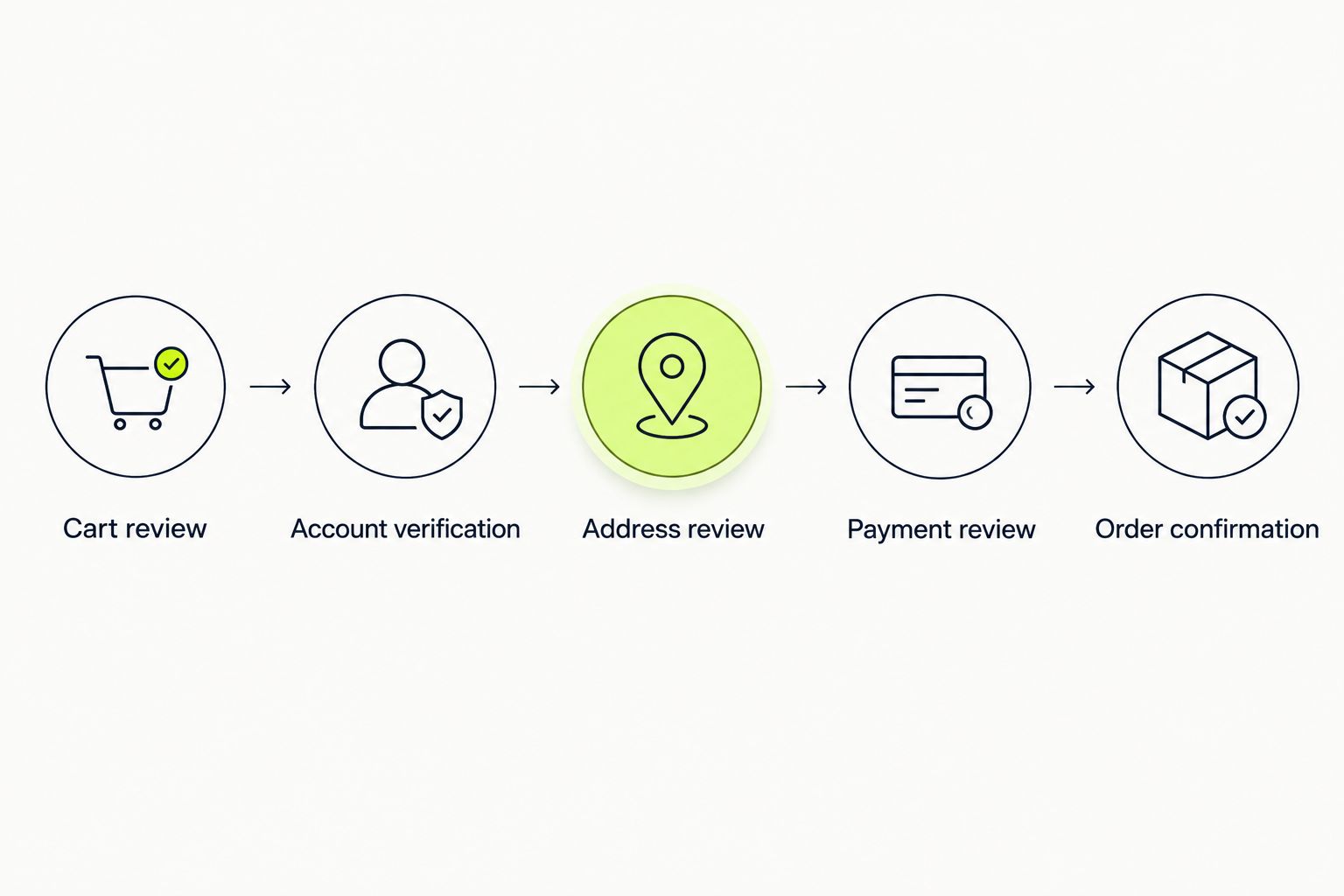
Use this review sequence for your 2026 order: Cart review, Account verification, Address review, Payment review, then Order confirmation. Each stage answers a different question, so do not skip the address review simply because the payment method looks familiar.
If the payment screen stalls after submission, stop before starting another purchase. Check for a confirmation message and an order reference first. Repeated submissions are not a troubleshooting method; they make it harder to establish whether the original attempt completed.
RETURNING SHOPPERS AND CHANGED DETAILS
The adjacent workflow is a returning purchase with a new address or payment method. Recognition saves entry work, but a remembered profile needs review whenever your circumstances change.
REUSE SAVED DETAILS
- Choose Shop Pay when displayed and complete any requested authentication.
- Check that the recognized address and payment method are still correct.
- Review the cart and submit only after the final order summary matches your intentions.
Best for: Repeat shoppers whose saved details remain current. The advantage is less typing; the drawback is that an old default can look familiar enough to escape notice.
UPDATE DETAILS BEFORE PAYMENT
- Open the address or payment editing controls presented in the Shop Pay flow.
- Enter the details you want used for this purchase and follow the displayed saving choices.
- Return to the final review and confirm that the order uses the revised information.
Best for: Shoppers who have moved, changed payment methods, or are sending an order elsewhere. The advantage is control over the current purchase; the drawback is additional review and entry work.
| Checkout workflow | Best for | Main benefit | Main limitation |
|---|---|---|---|
| Shop Pay with saved details | Returning shoppers with current information | Reuses contact, delivery, and payment details | Requires account access and careful default checks |
| Shop Pay with updated details | Shoppers changing an address or payment method | Combines recognition with a current-order review | Requires editing before submission |
| Manual checkout using a displayed payment method | Shoppers who do not want to reuse saved details | Lets you enter information for the purchase directly | Requires more manual entry |
Choose the workflow that matches your details, not the one with the fewest screens. A saved profile is useful only when the information selected for the current order is correct.
TROUBLESHOOTING YOUR 2026 CHECKOUT
SHOP PAY DOES NOT APPEAR
Use the payment options displayed in the live checkout. You cannot expose a merchant payment method by changing your own store-account preferences.
Refresh a clearly incomplete page once and confirm that you have reached checkout rather than only the cart. If Shop Pay is still absent, do not keep rebuilding the same cart to search for it. Continue with a displayed method or ask store support about the checkout options.
THE VERIFICATION CODE DOES NOT ARRIVE
Check the identity entered and the delivery channel shown in the prompt. Inspect filtered messages where relevant, and use the resend control offered by the flow rather than opening multiple simultaneous sign-in attempts.
Enter the latest code associated with the active attempt. If you no longer control the requested verification channel, use Shop Pay's account-recovery process instead of attempting to bypass authentication.
THE WRONG SAVED PROFILE APPEARS
Stop before payment and verify the account identity. This is especially important on a device used by more than one person.
Use the account-switching or sign-out controls presented by the flow, then authenticate with your own identity. Do not solve another person's recognized profile by inserting your payment details into it.
THE SIGN-IN WINDOW FAILS TO LOAD
Open the storefront in a regular, updated browser rather than a restricted in-app browser. Browser privacy controls or extensions that block required checkout functions can interrupt authentication.
If needed, adjust the blocking setting only for the trusted checkout session. Do not disable browser protections broadly, and avoid clearing all browser data as the first fix. First establish whether the issue is the browser session or the account sign-in.
PAYMENT FAILS OR CONFIRMATION IS UNCLEAR
For a declined payment, recheck the entered information and contact your payment provider when the message directs you there. Use another method only if the checkout presents it and you intend to use it.
For an unclear submission, check your confirmation messages before retrying. A pending card transaction alone does not establish that an order was accepted. Keep the attempt's details for support, but do not share complete payment credentials.
CUSTOMIZE YOUR WORKFLOW
Build a repeatable purchase routine rather than a blind shortcut. Keep your account information current, review apparel selections before payment, and preserve the order reference afterward.
For TLF Apparel performance apparel orders, make fit review part of the cart stage. Checkout recognition helps with repeated personal details; it does not assess whether a garment's fit matches your training needs or preferences. Do the shopping review before the payment review.
After confirmation, use the order tracking guide to move from checkout to checking your order's progress. Keep the confirmation message accessible so you can identify the correct order instead of relying on a remembered cart.
If you use a shared device, finish by signing out of the relevant accounts. On a personal device, remember that saved recognition is a convenience, not permission to skip the final review. The next purchase still needs its own address, item, and payment checks.
FAQ
How do I connect TLF Apparel to Shop Pay in 2026?
Select Shop Pay when it appears in the live checkout, then follow its sign-in or enrollment prompts. Shoppers do not need to install an integration or access merchant settings.
Do I need a store account to sign into Shop Pay?
A store account and a Shop Pay identity are separate. Follow the checkout's store requirements, then authenticate with the identity associated with your saved Shop Pay details.
Does Shop Pay automatically place my order?
No. Recognizing your saved details is not the same as submitting an order; review the purchase and use the final payment control before looking for confirmation.
Can I change my shipping address before paying?
Use the address-editing controls presented in the checkout before submitting payment. Confirm that the final order review shows the intended address, including any unit information.
What should I do if Shop Pay is missing?
Use a payment method displayed in the live checkout or ask store support about the options. A shopper cannot enable Shop Pay through personal account settings.
Is Shop Pay the same as paying in installments?
No. Shop Pay is an accelerated checkout service, while Shop Pay Installments is a separate payment feature with its own eligibility and terms. Follow only the choices presented for your purchase.
Do I need the Shop app to use Shop Pay checkout?
No. Shop Pay checkout works through supported merchant checkouts without requiring the Shop app. Complete the browser-based authentication prompts shown during your purchase.
Should I pay again if the confirmation screen does not load?
Check for an order confirmation before submitting another payment. If the result remains unclear, contact support with the relevant order or attempt information rather than repeatedly submitting the purchase.
ONE LAST THING
The biggest shortcut is not remembering your card. It is remembering the difference between authenticated, submitted, and confirmed.
For every 2026 purchase, finish at confirmation. An authenticated account proves access, and a submitted payment starts an attempt; an order confirmation gives you the reference needed to follow the purchase afterward. Save that reference before closing the checkout.


