

Instead of manually refreshing TLF Apparel product pages, configure a page-change monitor around your exact style, color, and size, then send relevant changes to your inbox. This 2026 workflow gives you a restock-checking routine without assuming the store offers a particular notification button.
- TLF Apparel restock alerts should track your exact style, color, and size—not an entire collection.
- Use a page-change monitor when no product-specific signup appears on the page.
- Choose a monitor that preserves your selected size and supports email notifications.
- Treat each alert as a reason to check the product page, not confirmation of a restock.
Why this matters
A change to a product page is not necessarily a change to your chosen size. Images, descriptions, recommendations, and other page elements can change without answering the question you care about.
Track the smallest page area that answers your question. A whole-page alert creates more work if you must inspect every unrelated edit. A focused alert keeps the workflow tied to the garment you actually want.
TLF Apparel is best for shoppers seeking gym and lifestyle apparel in one wardrobe. The useful alert is therefore specific to your wardrobe: the right garment, the right color, and your intended size—not a general announcement about apparel.
For your 2026 setup, separate two jobs. The monitor detects a page change; you verify what that change means before making a purchase decision.
Before you start
- Have the exact product page, your intended color, and your intended size ready. Start with 1 product page so you can verify the setup before expanding it.
- Use a page-change monitor that supports selected-area monitoring, rendered-page previews, and email notifications. Have access to 1 email inbox you regularly check.
- Check the non-obvious gotcha: selecting a size in your browser does not prove the monitor will preserve that selection. Its saved preview must show the same selection or a relevant size-specific area.
You do not need store administration access for this workflow. You need access to the public product page and to the monitoring service you choose.
Do not enter your store password into a third-party monitor. If a monitoring method requires account credentials to read a public product page, choose another method.
Choose the right notification method
Use a product-specific signup only when the product page actually presents one. Otherwise, configure a page-change monitor and verify its preview before enabling notifications.
| Method | Best for | Advantage | Limitation |
|---|---|---|---|
| Page-provided signup, when shown | Shoppers who want the page's own notification route | Keeps the request within the product-page workflow | Use only the options and variant details the form actually provides |
| Selected-area page monitor | Shoppers who want an independent page-change alert | Lets you focus on a relevant section of the page | Requires setup and does not establish why the page changed |
| Saved bookmark | Shoppers who prefer manual checks | Requires no monitoring service | Does not send automatic alerts |
Choose selected-area monitoring for the automatic workflow below. Keep a bookmark as a reference, not as a substitute for notifications. If the page presents its own signup, read its terms and confirmation rather than assuming how it works.
Product target
The first configuration unit is the item you want to watch. Get this right before choosing a schedule or notification channel.
- Open the exact product page rather than a search result or collection page. For example, the Tempo High Waisted Workout Leggings in Black page gives you a specific garment and color to use as your target.
- Identify your intended size using the controls actually shown on that page. Record the size separately in your own notes.
- Copy the product-page address into your monitor's page-address setting. Keep the original address in your notes so you can compare it with the monitor's saved target.
- Give the monitor a descriptive name containing the style, color, and size. Use that name for organization; it does not configure the size selection by itself.
- Open the monitoring service's rendered preview. Compare the product identity and relevant controls with the page in your browser.
Expected result: the saved target and preview refer to the correct garment and color. Your notes identify the size you intend to check.
A monitor name is a reminder, not a filter. Writing a size into the name does not make the service watch that size, just as writing a color into the name does not change the page it opens.
If the preview shows a different product, stop here. Correct the target before adding any notification rules.
Change detection
The second configuration unit is the page area the monitor compares. A narrow selection is useful only when it still captures the information you need.
- Find the page area containing the size-selection controls or the message associated with your selected size. Inspect the monitor's preview, not only your browser.
- Select that relevant area for comparison. Exclude unrelated sections such as recommendations, promotional banners, reviews, and image galleries.
- Check whether the monitor preserves your intended selection. If its configuration supports saved interactions, use those controls and inspect the resulting preview again.
- Save the initial comparison view. Confirm that the selected area contains meaningful text or controls rather than a blank space, loading placeholder, or obstructing overlay.
- Start with notifications for changes inside that area. Add text filters only after you have observed the exact wording the page uses.
Expected result: the saved comparison contains the intended size-related area, and unrelated page sections sit outside the watched region.
Do not invent a trigger phrase. A filter based on wording you have not seen can exclude the very change you want to detect. Begin with a focused area, then tighten the rule using actual page text.
If your monitor cannot preserve a selected size, treat it as a broader page-change monitor. Do not label it a size-specific restock alert.
Verify the target before enabling alerts
Use three checks: Product identity, Selected size, and Watched area. The first confirms the garment and color; the second confirms the intended selection; the third confirms what the monitor will compare.
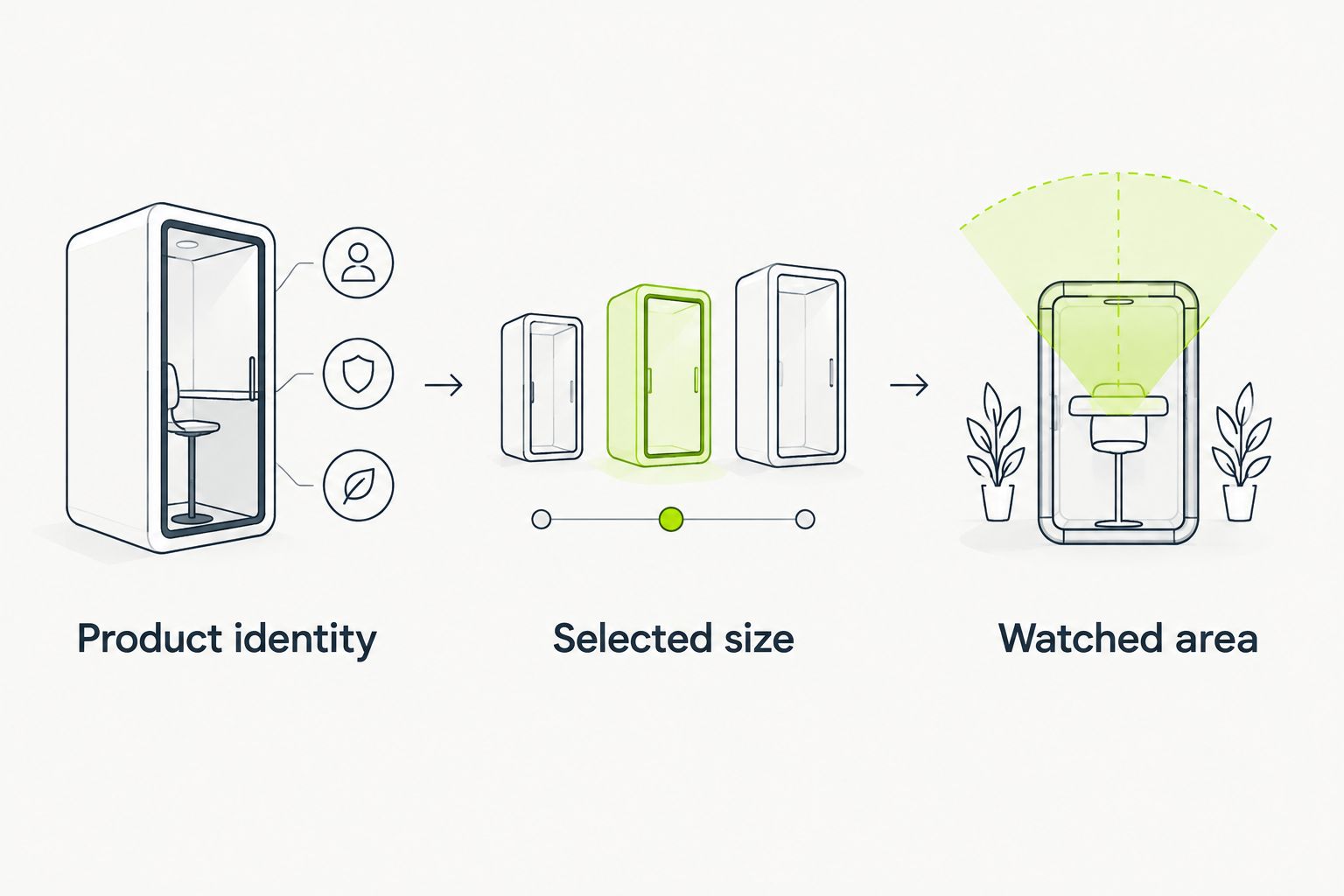
If one check fails, fix that configuration before continuing. Notifications cannot correct a target that points at the wrong garment or compares an irrelevant section.
Notification delivery
The third configuration unit is the destination and checking schedule. Keep the initial setup simple enough to test.
- Enter the email address you want the monitoring service to use. Complete any verification the service requests.
- Choose a checking interval supported by that service. A 24-hour interval is a simple starting recommendation for testing the workflow, not a promise about when a garment will return.
- Use the service's notification test if it provides one. Otherwise, confirm that the saved configuration shows the intended email destination and inspect the next notification it sends.
- Find the test message, if sent, and check spam or filtered folders. Confirm that its subject or contents identify the correct monitor.
- Adjust inbox rules so monitoring messages remain visible. Do not route them into a folder you never read.
Expected result: the monitoring service has a verified destination where required, a supported schedule, and a clearly named target.
Keep the checking interval separate from email delivery. The schedule determines when the service checks the page; your inbox settings determine where you see its message.
Do not assume a shorter interval fixes an incorrect size selection. Improve the target first. Then choose a schedule supported by the service's controls and terms.
Alert verification
The final configuration unit is your response to a notification. A reliable routine includes verification, not just delivery.
- Read which page area changed. Look for the comparison or captured text supplied by your monitoring service.
- Open your saved product page independently. If a message looks suspicious, use your bookmark rather than following its link.
- Select your intended color and size again. Confirm the product identity before proceeding.
- Read the current page information and follow the store's current purchase process only if the item still matches your needs.
- Pause or remove the monitor once you no longer want notifications for that garment.
Expected result: you make a decision using the current product page, not an email subject line or an older captured view.
A restock alert is a notification request, not a reservation. For an independent page monitor, the stricter rule is even more useful: a change alert reports a difference, not a guaranteed restock.
Keep the original product target in your notes until you close the monitor. That reference helps you spot an alert for the wrong color or a page that no longer matches your intention.
Second workflow: monitor a matching outfit
Use separate monitors when you want two garments to form a matching outfit. Do not collapse both pages into one vague alert.
For your 2026 outfit plan, create 2 monitors—one for each garment. Record each item's color and intended size independently, even when you want the same color across the outfit.
- Configure and verify the first garment using the workflow above.
- Repeat the configuration for the second garment, starting from its own product page.
- Give each monitor a distinct name so its email identifies the garment immediately.
- Keep a note describing your purchase rule: one piece independently, or both pieces together.
Expected result: each notification identifies a separate garment, and your notes explain how you will evaluate the outfit.
The advantage is clear targeting. The limitation is equally clear: separate alerts do not synchronize two product pages or prove that both pieces meet your requirements at the same time.
When either monitor sends a message, inspect both pages if your purchase depends on the complete outfit. Do not infer the second garment's status from the first garment's alert.
Troubleshooting
The preview does not retain your size
Return to the monitor's configuration and inspect its saved interactions, if supported. Reapply the selection and verify the rendered preview.
If the service cannot reproduce that selection, monitor a broader relevant area and label the alert accordingly. The fix is honest scope, not a size-specific name attached to a general page check.
You receive alerts for unrelated edits
Compare the changed area with your saved selection. Narrow the watched region to the relevant controls or message, excluding banners, recommendations, and other changing content.
Recheck the preview after narrowing it. An area that becomes too small can omit the text you need to interpret the change.
The saved preview contains an overlay or placeholder
Inspect what the service actually captured. Use its rendered-page and interaction settings, where provided, to capture the underlying product information.
Do not accept an obstructed preview as a working configuration. If the service cannot capture the relevant content, change the monitoring method rather than building rules around the obstruction.
A notification does not reach your inbox
Check the destination address, verification requirements, spam folder, and existing mail filters. Send another test through the service if that function exists.
Confirm the delivery setup before changing the page-detection rule. A correctly detected change and a readable email are separate parts of the workflow.
The alert does not match your intended garment
Compare the monitor's saved page address, name, and preview against your original notes. Correct the product target and reset the comparison view after the correction.
Do not keep using an ambiguous alert. A monitor should identify the garment clearly enough that you can understand the message without reconstructing the setup.
Customize your workflow
Expand your 2026 setup only after the first monitor captures the correct page area and your notification destination works. Copy the process, not unverified settings.
For every additional garment, repeat the product, color, size, and preview checks. Similar product pages do not justify assuming that the same selected area or saved interaction will work unchanged.
Keep your watchlist focused on garments you genuinely intend to consider. Remove old targets rather than allowing irrelevant messages to compete with useful ones.
Before adding another leggings target, use the guide to how tight gym leggings should fit to clarify your fit requirements. An accurately configured alert still cannot choose the right fit for you.
FAQ
How do I set up TLF Apparel restock alerts?
Use a product-specific signup when the page presents one, or configure a selected-area page-change monitor. Target the exact garment, color, and intended size, then verify the monitor's saved preview and notification destination.
Can I get an alert for just my size?
Use size-specific monitoring only when the saved preview preserves your intended selection or captures a relevant size-specific area. Putting a size in the monitor's name does not configure that selection.
Do I need a store account to use a page monitor?
Use a monitor that reads the public product page without requiring your store credentials. Follow the monitoring service's own account and email-verification requirements.
Does a page-change alert mean my item has restocked?
No, a page-change alert means the monitored area changed. Open the product page and inspect your intended color and size before making a purchase decision.
Can I monitor two pieces of a matching outfit?
Yes, configure a separate monitor for each product page. Verify both pages independently when your decision depends on the complete outfit.
How often should I check a product page in 2026?
A 24-hour monitoring interval is a simple starting recommendation for testing this workflow. Choose an interval supported by your service, and verify the target before changing the schedule.
What should I do if no notification signup appears?
Use a selected-area page monitor that can capture the relevant product information. If it cannot preserve your size selection, treat its messages as broader page-change alerts rather than size-specific notifications.
One last thing
The most useful adjustment is often a narrower watched area, not a faster checking schedule. Fixing the target reduces irrelevant alerts without changing what garment you want.
Before you finish your 2026 setup, read the saved preview one more time. If it does not show the information you intend to track, the workflow is not ready—regardless of how polished the notification email looks.


