

Instead of switching between your gift-card message and checkout, keep the redemption code ready, enter it in the checkout field identified for gift cards, and verify the credit before submitting your order. Start at TLF Apparel and follow the instructions supplied with your card; typing a code is not the same as confirming it was accepted.
- TLF Apparel gift card redemption starts with the redemption code and the instructions supplied with your E-Gift Card.
- Enter the gift-card code only in a checkout field identified for gift cards.
- Verify the applied credit in the order summary before submitting payment.
- Keep gift-card codes private; share checkout errors without exposing the full code.
Why this matters
TLF Apparel's E-Gift Card is for shoppers who want to choose their own gym and lifestyle apparel. Redemption is a separate task from choosing your size, entering your delivery details, or selecting another payment method.
The critical checkpoint is the order summary. A code sitting in an input box does not establish that gift-card credit has been applied. You need an acceptance result and a summary that reflects the credit before you authorize the order.
Use this 2026 guide as a verification workflow, not a substitute for the instructions attached to your card. Those instructions and the checkout response govern the next step. Stop when either conflicts with what you expected rather than completing the purchase and trying to resolve the payment afterward.
Before you start
- Your Card And Redemption Instructions: Open the original gift-card message or document and locate the redemption code. Keep any accompanying instructions accessible.
- Your Cart And Delivery Details: Choose the items, sizes, and quantities you intend to order, and have the information needed to complete checkout ready.
- The Checkout Gotcha: Confirm that the field accepts gift cards before entering the code. A field intended only for another type of code is not proof that gift-card redemption is supported there.
Keep the card information in 1 private note if you need to switch between apps. Copy the code exactly, then remove the temporary note when you no longer need it. Do not place the code in a shared shopping list, public screenshot, or message thread with unrelated recipients.
You do not need to solve every possible payment question before building your cart. You do need to pause before submission if the checkout has not clearly accepted the gift card.
Your gift-card code
Locate the redemption information
- Open the original gift-card message or document, rather than a screenshot cropped to show only the artwork.
- Find the redemption code and read the instructions beside it. Distinguish the code from an order reference, receipt identifier, or other information in the message.
- Copy only the code. Exclude surrounding explanatory text and accidental spaces before or after it.
- Keep the original message accessible so you can compare the pasted value with its source if checkout reports an error.
Expected result: You have the complete redemption code and the instructions that explain how to use it. You are not relying on a remembered value or an incomplete image.
Do not guess missing characters. If the message is incomplete or unreadable, ask the sender for the original gift-card information before continuing. Repeatedly entering variations of an uncertain code does not establish which version is correct.
Protect the code while you shop
Treat the redemption code as private payment information. Someone helping you choose a size does not need it, and a public post about a checkout problem should never include it.
If you photograph your screen to document an error, hide the code first. Also exclude your address, payment information, and other personal details. Keep the error wording visible so the image remains useful without exposing the card.
For your 2026 checkout record, save the instructions separately from any public-facing shopping notes. The goal is simple: keep enough information to complete redemption without making the code available to other people.
Your checkout entry
Prepare the order before applying the card
- Review each item in the cart. Confirm the selected size, color, and quantity against what you intend to receive.
- Proceed to checkout and complete the required information presented there.
- Locate the order summary and inspect the available code-entry and payment areas.
- Identify a field whose wording explicitly includes gift cards. If you cannot find one, consult the instructions supplied with the card before proceeding.
Expected result: Your intended order is ready, and you have identified where the checkout accepts a gift-card code. You have not submitted the purchase.
Avoid naming a button from memory. Use the actual labels on your screen, especially when switching between a phone and a computer. The useful distinction is the field's stated purpose, not its position or appearance.
Do not enter a gift-card code into an unrelated field just to see what happens. If the field's wording is unclear, resolve that uncertainty before continuing with payment.
Enter and submit the redemption code
- Paste the complete code into the field identified for gift cards.
- Compare the pasted value with the original. Check for accidental spaces, missing characters, or text copied from an adjacent line.
- Use the control attached to that field to submit the code for validation, following its displayed wording.
- Read the response. If checkout reports an error, stop here and address that message before authorizing the order.
Expected result: Checkout gives you a clear acceptance or error result. A populated text box alone is not the expected result.
If nothing changes, inspect the page before clicking again. Look for validation text near the field and a corresponding update in the summary. Do not treat the absence of an obvious error as confirmation that credit has been applied.
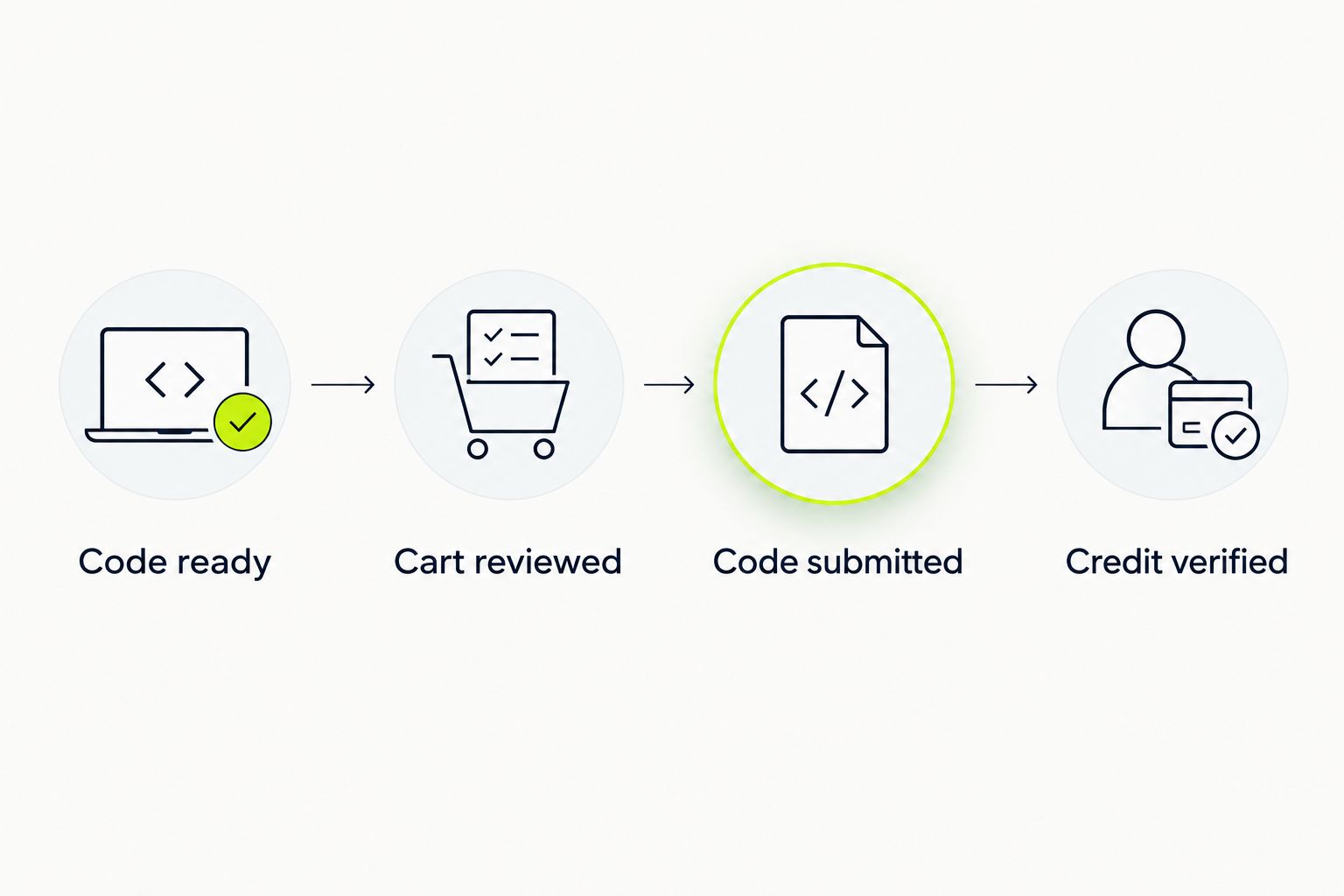
The workflow has four checkpoints: Code ready, Cart reviewed, Code submitted, Credit verified. Keep them in that order so payment does not get ahead of verification.
Your order summary
Verify the credit before placing the order
- Inspect the order summary for an entry that identifies the applied gift-card credit.
- Review any remaining amount checkout asks you to pay. Follow the payment options actually presented rather than assuming a particular combination is supported.
- Recheck the items, delivery information, and payment summary after any changes to the order.
- Submit the purchase only when the gift-card result and the final order details are clear.
Expected result: The summary shows that the gift card was accepted and explains the payment required to complete the order.
Make 2 final checks: confirm the applied credit, then confirm the remaining payment request. These checks answer different questions. The first establishes that redemption worked; the second establishes what you are authorizing next.
Do not assume that a card must cover the whole order or that another payment method can cover a remainder. Let the checkout response and card instructions establish what is permitted for your transaction.
For a purchase completed in 2026, retain the order confirmation and original gift-card information privately. If the confirmation leaves you uncertain about how payment was recorded, ask for clarification rather than attempting another purchase as a test.
Redeeming on a phone instead of a computer
The same verification sequence works as a mobile shopping checklist: prepare the code, identify the correct field, submit it, and check the summary. Screen size changes how much information you can see at once; it does not replace those checkpoints.
Use the comparison below to choose a working setup. Neither device is evidence that a code has been accepted.
| Checkout setup | Best for | Practical advantage | Limitation to manage |
|---|---|---|---|
| Computer | Reviewing the card message and checkout side by side | More screen space for comparing the original code with the entry | Copying from another device adds a transfer step |
| Phone | Using a gift-card message already accessible on your phone | You can copy from the message into checkout on the same device | App switching makes it easier to lose track of what you already verified |
On a phone, copy the code before returning to checkout. After submitting it, open or inspect the order summary wherever the current interface presents it. Finish verification before moving to the final purchase action.
If your checkout route changes, repeat the summary check. Do not assume that information entered on an earlier screen remains applied on a later one. The separate guide to connecting TLF Apparel to Shop Pay covers that checkout topic; it does not establish gift-card compatibility for your transaction.
Troubleshooting
The code is rejected
Compare the entered code with its original source. Remove accidental surrounding spaces and confirm that you used the redemption code rather than a receipt or order reference.
Then read the exact error message. If a corrected entry still fails, stop guessing and seek help through the support route presented on the site or in the card instructions. Do not invent a missing character or assume the card is invalid solely because the first attempt failed.
You cannot identify a gift-card field
Inspect the checkout's code-entry and payment areas, including any summary sections that the interface lets you expand. Look for wording that explicitly identifies gift cards.
If the purpose remains unclear, consult the card instructions or ask for help before submitting payment. A familiar-looking box is not enough. Neither is an unrelated payment field.
The code is entered, but no credit appears
Confirm that you submitted the code for validation rather than merely pasted it. Check for a response beside the field and a corresponding entry in the order summary.
Do not complete the order while redemption is unconfirmed. If checkout provides no clear result, document what you see without exposing the code and ask for assistance.
Checkout still requests another payment
Review whether the summary shows accepted gift-card credit. A remaining payment request and a rejected card are different issues; identify which situation the screen actually describes.
Follow the available checkout options and card instructions. Do not assume that every payment method can be combined with the gift card, or that the card covers every component of the order.
You already submitted the order without confirmed credit
Keep the order confirmation and original gift-card information. Contact support through an official route and explain what happened without posting the code publicly.
Ask what options apply to the completed transaction. Do not assume gift-card credit can be added afterward, and do not place a duplicate order while waiting for clarification.
Customize your checkout workflow
Build a reusable 2026 checkout checklist rather than saving the code in several places. Keep 3 checklist items: card instructions, applied-credit confirmation, and order confirmation. This keeps preparation, verification, and recordkeeping separate.
Before redemption, finish your clothing decisions. Review fit information and your selected variants so a last-minute cart change does not interrupt payment verification. If you change the cart afterward, inspect the summary again before submitting.
After redemption, move from payment verification to order follow-up. Save the confirmation where you can find it, but keep the gift-card code private. An order reference is useful for discussing a purchase; a full redemption code should not appear in a public review or tracking question.
FAQ
How do I redeem a TLF Apparel gift card at checkout?
Follow the instructions supplied with your gift card, enter the redemption code in a checkout field identified for gift cards, and submit it for validation. Confirm the applied credit in the order summary before placing the order.
Where do I find my gift-card redemption code?
Look in the original gift-card message or document for the code identified for redemption. Do not substitute an order reference or receipt identifier, and ask the sender for the original information if your copy is incomplete.
Can I redeem my gift card on my phone?
Use the same verification checklist on your phone: identify the gift-card field, submit the code, and inspect the order summary. Follow the card instructions and the options actually presented by checkout.
Why does checkout reject my gift-card code?
Start by checking the code against its original source and confirming that the field accepts gift cards. The exact checkout error determines the next step; stop guessing if a corrected entry still fails.
Can I use another payment method with my gift card?
Check the payment options presented after the gift card is accepted. Do not assume a particular payment combination is supported; follow the checkout response and the instructions supplied with the card.
How do I know my gift card was applied?
Verify a gift-card credit entry in the order summary before submitting the purchase. A code visible in an input box is not proof of successful redemption.
Can I apply a gift card after placing my order?
Ask support what options apply to your completed transaction. Keep the order confirmation and gift-card information private, and do not assume credit can be applied retroactively.
Does my gift card expire or keep unused credit?
Check the terms supplied with your specific gift card for expiration and unused-credit rules. Ask for clarification before purchasing if those terms do not answer your question.
One last thing
The strongest redemption check is not the code you entered; it is the credit checkout confirms. Make that your stopping rule for every 2026 gift-card purchase: no confirmed credit, no final payment submission.
Keep the original card information after ordering until any payment questions are resolved. Clear records help you explain the issue without repeating guesses or exposing the code.


