

Instead of collecting screenshots and copying product links, use the Pinterest browser extension to save TLF Apparel to Pinterest while you browse. The extension helps you capture an image and its source page, but you still choose the image, select a board, and confirm each save—this is assisted saving, not automatic background collection.
- To save TLF Apparel to Pinterest, use the Pinterest browser extension and confirm each Pin.
- Pinterest boards organize gym outfits and activewear inspiration without a folder full of disconnected screenshots.
- Save from individual product pages, then test each Pin’s destination link.
- Use the Pinterest mobile sharing option when browsing on your phone.
WHY THIS MATTERS
A screenshot shows an outfit. A linked Pin also gives you a route back to the product page. That distinction matters when you revisit a saved look and need to check its details rather than search for it again.
TLF Apparel is best for shoppers building a gym-to-street activewear wardrobe. Start from TLF Apparel, open the individual styles you want to remember, and save those pages rather than a broad browsing page.
For your 2026 outfit board, the goal is a useful shortlist—not a record of every item you scroll past. Pinterest helps organize visual references; the product page remains the place to verify fabric, fit, sizing, and care information.
BEFORE YOU START
- Accounts and access: Sign in to Pinterest and use a desktop browser that supports the official Pinterest browser extension. You also need permission to install extensions on that browser.
- Materials: Open an individual product page and decide which board should receive the Pin. Start with 1 board and 3 test Pins before organizing a larger wardrobe shortlist.
- The gotcha: A page can contain several selectable images, and a color selection does not necessarily produce a different page address. Check both the selected image and the saved destination; do not assume the Pin preserves every choice you made on the page.
You do not need to connect a store account to Pinterest for this browsing workflow. You are saving a web reference, not syncing a shopping account, order history, or wardrobe database.
Keep your first test simple. Use 2 tabs: the product page in one and your Pinterest board in the other. That makes it easier to compare the source with the saved result.
CHOOSE YOUR SAVING METHOD
Use the desktop extension for repeated browsing sessions; use mobile sharing when you are already shopping on your phone. Both workflows require you to make the final save decision.
| Method | Best for | Advantage | Limitation |
|---|---|---|---|
| Pinterest browser extension | Saving several looks during desktop browsing | Opens an image-saving workflow from the page you are viewing | Requires a supported browser, extension permissions, and confirmation |
| Mobile sharing to Pinterest | Capturing an outfit reference while browsing on your phone | Uses your phone’s sharing controls | Pinterest must appear as a sharing destination, and image selection needs checking |
Neither method turns ordinary browsing into an unattended collection process. Neither should replace checking the destination after your first save.
For a 2026 activewear shortlist, choose the method that matches where you browse most often. There is no reason to add a separate automation service just to collect a few outfit references.
DESKTOP EXTENSION SETUP
Install the official extension
- Open your browser’s extension store and search for the Pinterest browser extension.
- Check that the listing identifies Pinterest as its publisher. Avoid similarly named third-party tools.
- In Chrome, select Add to Chrome, review the permissions, and select Add extension to approve installation.
- Open Chrome’s Extensions menu and pin the Pinterest extension to the toolbar so it stays easy to reach.
- Sign in to Pinterest in the same browser profile you will use for browsing.
Expected result: The Pinterest extension appears in your browser toolbar, and your Pinterest account opens without asking you to sign in again.
Review the permission request before accepting it. Browser extensions operate within the access you grant them; install the official tool rather than adding several overlapping image-saving extensions.
If your work or school manages the browser, installation restrictions belong to that administrator. Do not try to bypass them. Use a permitted personal browser or the mobile workflow below instead.
Set the destination board
- Open Pinterest and go to your profile.
- Open the board you want to use, or create a board before starting your browsing session.
- Give the board a purpose-based name, such as Training Outfit Shortlist or Everyday Activewear.
- Decide whether the board should be public or secret. Use a secret board when you want to keep personal outfit planning private.
- Return to the product-page tab, leaving the board open for verification.
Expected result: You know exactly where the next Pin belongs, so you do not have to invent a filing system during every save.
A board named Training Outfit Shortlist 2026 is useful if you want to separate this year’s ideas from later planning. The year is an organizational label, not a promise that saved product information stays current.
Avoid splitting your first few Pins across too many boards. A small, coherent collection is easier to review than several nearly empty folders with overlapping names.
PRODUCT IMAGE CAPTURE
Save the right image
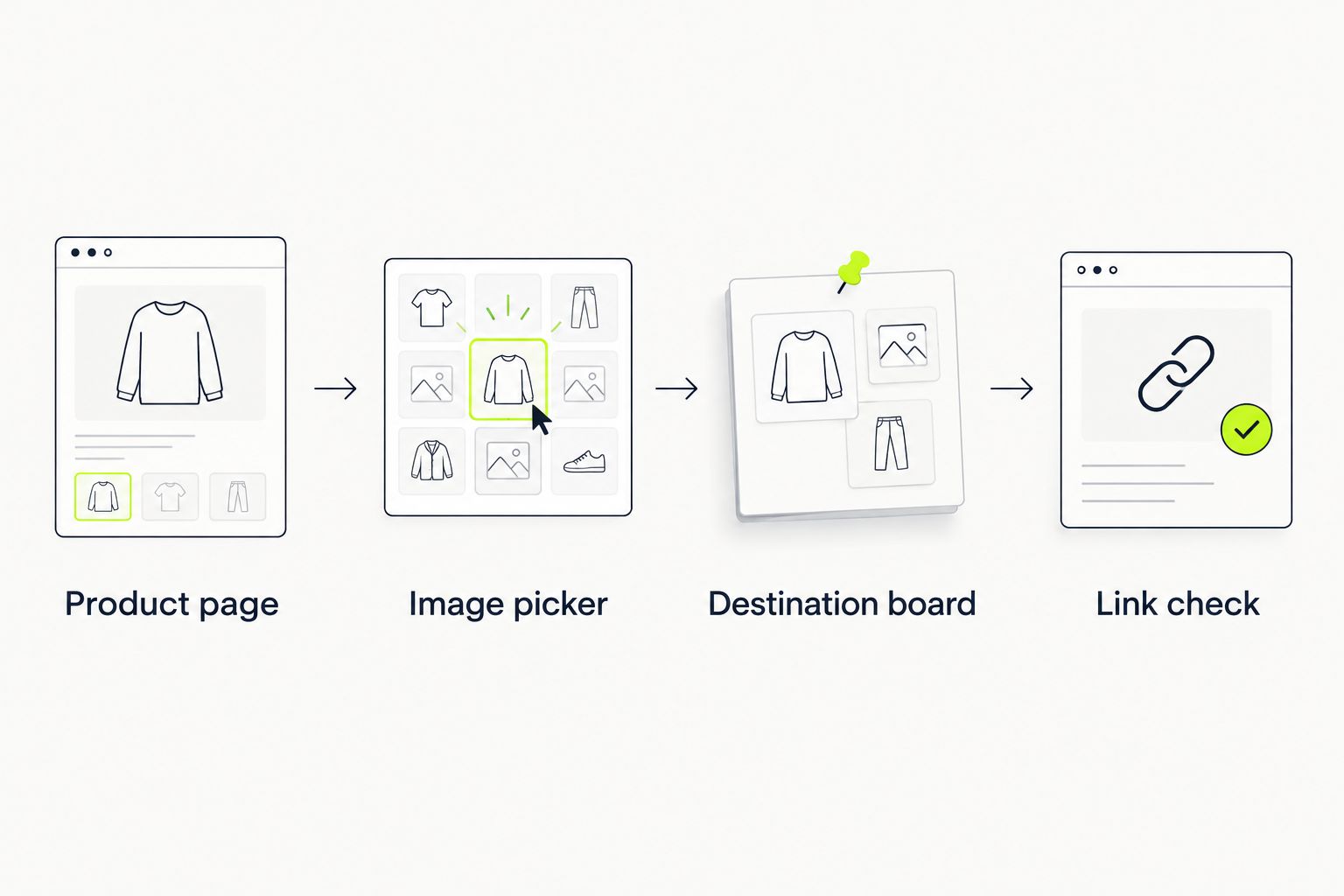
- Open an individual product page, such as the TLF Swole Tee in black, rather than saving from a page containing many unrelated styles.
- Select the color you want to reference and wait for the product images to finish loading.
- Select the Pinterest extension in your browser toolbar.
- In the image picker, choose a clear image of the intended garment. Check that it is not a recommendation tile, detail from another item, or unrelated page graphic.
- Choose your destination board and select Save.
Expected result: A new Pin appears on the selected board with the image you chose.
Choose the image according to the decision you need to make. A full outfit view helps you compare proportions; a closer garment view helps you remember a neckline, graphic, or construction detail. Neither image proves how the garment will fit you.
The TLF Apparel activewear range includes training clothing and everyday styles, which makes a mixed outfit board useful. The limitation is visual: a saved image cannot confirm personal fit, support, or training suitability. Read the product details before deciding what belongs in your workout rotation.
Check the saved reference
- Switch to your Pinterest board and refresh it if the new Pin has not appeared.
- Open the Pin and compare its image with the product page you just saved.
- Follow the Pin’s destination link and confirm that it reaches the intended product page.
- Check whether the destination preserves the color you selected. If it does not, keep the intended color in your own planning notes.
- Repeat the test with the remaining items in your initial 3-Pin trial.
Expected result: Your test Pins show the intended garments and lead back to the right source pages.
Do this before a long saving session. Finding a wrong image after one test is easy to correct; finding the same mistake throughout a board creates unnecessary cleanup.
A Pinterest Pin is a reference, not a live product record. Reopen the destination whenever you need current product details rather than treating the saved preview as the final answer.
MOBILE VARIANT: SAVE WHILE BROWSING ON YOUR PHONE
Best for: saving an outfit reference without switching to a desktop browser. Install the Pinterest app and sign in before starting this variant.
- Open an individual TLF Apparel product page in your phone’s browser.
- Choose the intended color and let the main image load.
- Open your browser’s Share control.
- Select Pinterest from the sharing destinations. If it is hidden, open your phone’s expanded sharing list and look for Pinterest there.
- Review the image offered by Pinterest, choose the destination board, and select Save.
- Open the saved Pin and test its destination, just as you would on desktop.
Expected result: The product reference appears on your board without sending a screenshot to yourself first.
Mobile sharing is convenient, but the preview still needs inspection. A page can provide an image that differs from the one you were looking at, particularly when it contains several product photographs.
For a 2026 mobile browsing routine, keep the board destination consistent during each session. Save first, verify the result, then continue browsing. Do not assume that opening the share sheet means the Pin has been saved.
This variant captures a reference at the moment you choose it. It does not monitor the page afterward or automatically revise an existing Pin when the product page changes.
TROUBLESHOOTING
The Pinterest extension is missing
Open the browser’s extension manager and confirm that Pinterest is installed and enabled. In Chrome, use Extensions to make the toolbar control visible.
Check the browser profile, too. An extension installed in one profile is not automatically installed in another. If an administrator blocks installation, use an allowed device rather than changing security controls.
The image picker shows the wrong images
Return to the individual product page, close any open overlay, and let the main images load before reopening the extension. Inspect the picker instead of choosing its first result by habit.
If the intended image still does not appear, try sharing the product page from your phone. Skip the save if you cannot capture an accurate reference; a misleading Pin is not useful organization.
The Pin opens a browsing page instead of the product
Open the intended product page directly and save again from that page. Test the replacement Pin before removing the incorrect one.
The source page matters. Saving an image from a broad page does not guarantee that Pinterest will identify the individual garment behind it.
The color does not match when you reopen the link
Compare the Pin image with the product page’s selected color. Some page selections do not remain encoded in the address you save.
Use the correct image as your visual reference and record the intended color separately when needed. Do not invent a modified product address to force a color selection.
Pinterest is absent from mobile sharing
Confirm that the Pinterest app is installed and that you can open it while signed in. Then reopen the browser’s sharing controls and inspect the expanded app list.
If Pinterest still is not offered, switch to the desktop extension. Sending the page to an unrelated app does not complete a Pinterest save.
CUSTOMIZE YOUR WORKFLOW
Organize around how you choose clothing, not just garment categories. A training outfit board can group pieces by session needs, while an everyday board can focus on combinations you would wear outside the gym.
Use these as planning prompts:
- Training purpose: The activity you are choosing the outfit for.
- Fit question: The product detail you still need to check.
- Styling role: Whether the piece anchors the outfit or complements something you own.
- Color reference: The exact color you intended to save.
For your 2026 board, separate visual inspiration from a purchase shortlist. A garment can look right in a Pin while still needing a closer sizing or care check.
The guide to wearing gym clothes as everyday streetwear is a useful next read when your board mixes training looks with off-duty outfits. Use that context to refine combinations instead of accumulating more near-identical Pins.
FAQ
How do I save TLF Apparel to Pinterest while I browse?
Use the official Pinterest browser extension from an individual product page, select an image, choose a board, and confirm Save. Open the resulting Pin to check its image and destination link.
Can Pinterest automatically save every style I view?
The workflow in this guide requires you to confirm each save. The browser extension assists with image capture; it is not an unattended browsing collector.
Do I need to connect my store account to Pinterest?
No store-account connection is required for this workflow. You need a Pinterest account and access to the product page you want to save.
Is the browser extension better than mobile sharing?
The browser extension is better for repeated desktop saving, while mobile sharing suits browsing on your phone. Both methods require checking the selected image and saved destination.
Why did Pinterest save the wrong product image?
A page can contain several selectable images, including recommendation tiles and other graphics. Reopen the individual product page, let its images load, and choose the intended garment image manually.
Does a saved Pin keep my selected size and color?
Do not rely on a Pin to preserve your selected size and color. Check the destination page and keep any essential selection details in your own notes.
Will my saved Pin update when the product page changes?
Do not treat a saved Pin as a synchronized product record. Follow its destination link whenever you need to verify current product details.
ONE LAST THING
The most useful Pin is not necessarily the best-looking image—it is the one you can trace back to the right garment. Before ending a browsing session, open a saved reference and follow its destination.
That small check protects the purpose of the whole board: remembering what caught your attention without having to hunt for it again.


