

Instead of retyping account details whenever you shop, use the store’s Google sign-in option if it appears on the account screen; a Google account alone does not enable automatic access. Start at TLF Apparel, check the available sign-in methods, and follow the matching workflow below.
- For tlf apparel google sign in, check the account screen first; Google authentication requires a store-provided option.
- Google Password Manager can fill saved credentials, but it does not create a Google sign-in connection.
- Google Pay authorizes checkout payments; it is not proof that your store account is signed in.
- Use the correct email identity, verify the destination, and keep account shortcuts off shared devices.
Why this matters
A Google account, a saved store password, and a payment wallet solve different problems. Confusing them sends you through the wrong setup—and changing a browser setting cannot add a login method that a store does not offer.
For your 2026 setup, separate authentication from convenience. Authentication establishes which customer account you can access; convenience features reduce typing or preserve an existing session.
TLF Apparel is best for shoppers seeking performance apparel and everyday gym-to-street style. Account access is a separate question: choose the sign-in method actually presented, rather than assuming a clothing retailer supports a particular integration.
The goal is straightforward: reach the correct customer account without creating unnecessary duplicates, exposing credentials, or mistaking a completed payment for a successful login.
Before you start
- Account access: Have access to the Google account you intend to use and the email address associated with your existing customer account. If the screen requests an emailed code, you also need access to that inbox.
- Personal browser: Use an updated browser on a device you control. Keep your device lock enabled before saving credentials or retaining a shopping session.
- The gotcha: A Gmail address is not the same as Google authentication. Entering a Gmail address into an email field does not link the store to Google, and signing into Chrome does not automatically sign you into every website.
Make 2 identity checks before continuing: confirm the Google email you plan to select, then compare it with the email on a previous store confirmation. Matching addresses help you choose the intended identity, but do not assume that matching addresses automatically merge separate accounts.
Do not install an extension or provide a Google password to a third party claiming it can activate store login. A website’s supported authentication methods come from that website—not from a shopping shortcut.
Choose your account-access method
Use this 2026 decision table before changing any settings. Each method has a useful role and a clear limitation.
| Method | Best for | What it does | Limitation |
|---|---|---|---|
| Google sign-in, when offered | Shoppers who want to authenticate with an existing Google identity | Lets a participating website use Google authentication | Requires a Google sign-in option on the website |
| Google Password Manager, for a password-based login | Shoppers who already have saved store credentials | Stores and fills a website’s username and password | Does not turn a password login into Google authentication |
| The store’s displayed email-based flow | Shoppers using the account method presented on screen | Follows the website’s own email, code, or password process | Requires the access requested by that flow |
Choose the displayed account method first; configure browser convenience second. This order prevents you from troubleshooting autofill when the page actually expects an email code.
Google Pay belongs outside this table. It is a payment method, not a substitute for checking whether you have reached your customer account.
Account-screen check
- Open the official storefront in a normal browser tab. Navigate to its customer-account entry point using the controls visible on the page; do not guess an account URL.
- Inspect the sign-in screen before entering information. Look specifically for a Google-branded authentication option, rather than a Google Pay button at checkout.
- If a Google authentication option appears, proceed to the Google-account selection steps below. If it does not, use the account method displayed on the page.
- Read the requested action. An email address field, a password field, and an emailed-code request are different instructions; follow the one you actually receive.
- Stop if a page unexpectedly requests payment-card information merely to establish Google account access. Return to the official storefront and restart from there.
Expected result: You know whether the account screen offers Google authentication or requires a different sign-in method. You have not changed browser settings or created another account unnecessarily.
This check is the gate for the entire workflow. Do not search for a hidden Google connection setting simply because the article title mentions automatic sign-in.
Google-account selection
Complete this section only when the store presents Google authentication. The steps describe Google’s account-selection process, not a promise about which controls the storefront displays in 2026.
- Select the Google-branded sign-in option on the account screen. Let that action open the authentication flow rather than searching separately for a login page.
- Review the Google account shown. If it is the intended account, select it; if not, choose Use another account when Google presents that control.
- Complete the verification Google requests. Enter your Google password only on Google’s authentication page, not into a store password field.
- Read any consent screen before approving it. Check the named destination and requested access; cancel if either differs from the action you intended.
- Return to the storefront after authentication. Inspect the account details shown and confirm that they belong to you.
Expected result: The authentication flow returns you to the intended store account, or presents a clear next step. Selecting an account in Google’s chooser alone is not the final success check.
If you see an unfamiliar profile or an empty account where you expected previous activity, stop before making account changes. Recheck the selected email and the identity associated with earlier purchases.
Session verification
A completed login and an automatic future login are not identical. A retained website session can reopen an account without another prompt, but websites can expire sessions or require fresh verification.
- Confirm that the customer-account area shows your intended identity. Do not use a populated shopping cart as evidence of authentication.
- Complete 1 return-visit test: close the account tab, reopen the storefront in the same browser profile, and revisit the account area.
- Observe the result. If the account opens, the browser retained a usable session; if the sign-in screen returns, follow the displayed authentication method again.
- On a shared device, sign out of the store when finished. Signing out of the website and signing out of Google are separate actions.
Expected result: You know what the next visit actually requires on that device. You have tested the result rather than assuming that a successful first login guarantees permanent access.
For a 2026 shopping setup, make repeatability—not permanent login—the standard. A secure authentication prompt is preferable to leaving a customer account accessible to the next person using a shared computer.
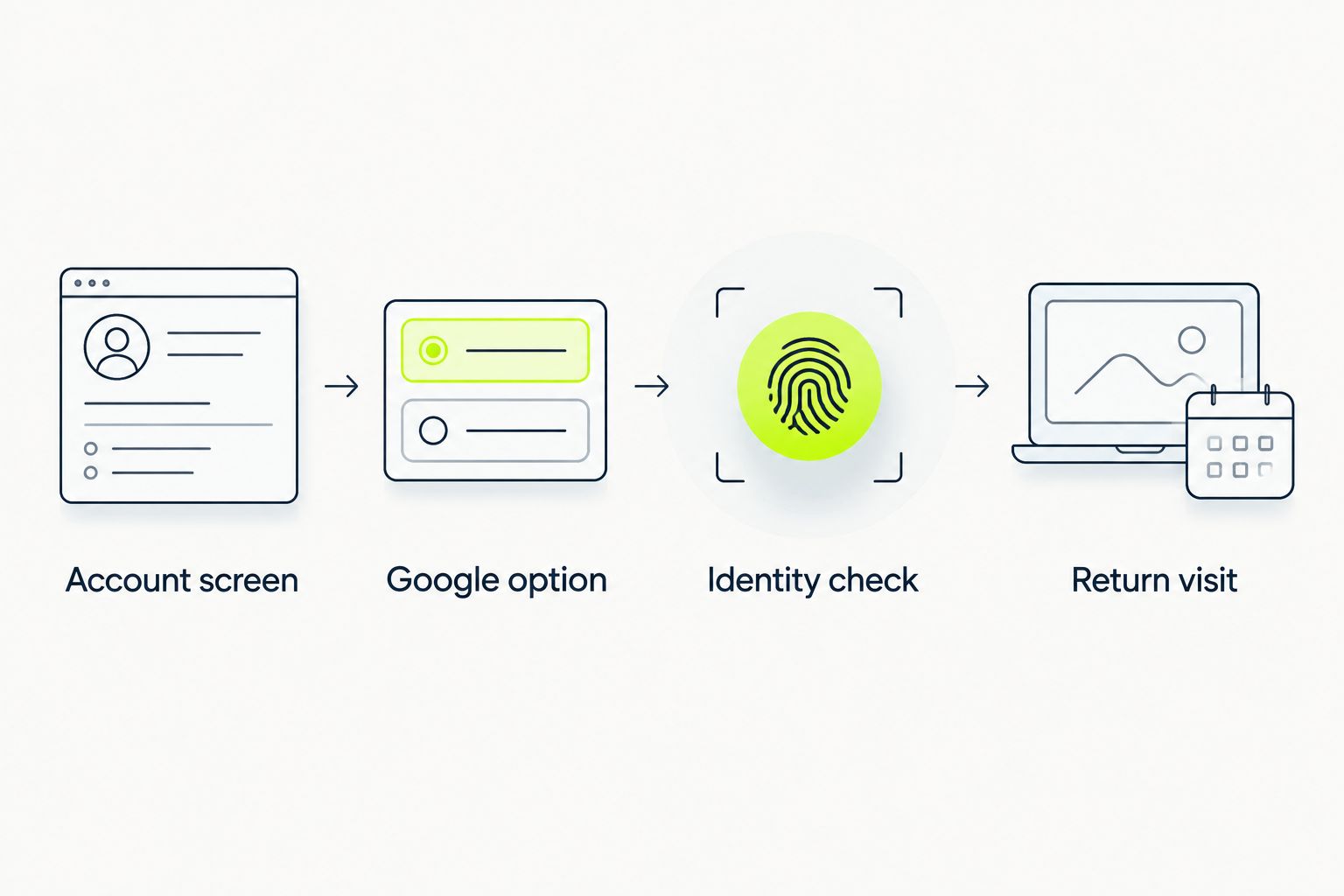
The workflow follows a simple sequence: Account screen, Google option, Identity check, Return visit. If the Google option is absent, follow the displayed method instead of trying to force that branch.
Second workflow: use saved credentials instead
Google Password Manager is best for a password-based store login you already use. Its advantage is reduced typing; its limitation is that the website still authenticates a store password, not your Google identity.
Use this alternative only if the account page actually accepts a username and password. A password manager cannot replace an emailed verification code or add an absent password field.
- Complete the store’s password-based sign-in manually on your personal device. Confirm the website and username before saving anything.
- If your browser offers to save the credentials in Google Password Manager, review the website and account listed in that prompt before accepting.
- On a later visit, select the saved credential offered for that website. Review the filled email address before submitting the form.
- If device authentication appears, complete it yourself. Do not disable your screen lock to remove that protection.
- After changing a store password, update the corresponding saved credential so the browser does not keep offering the old one.
Expected result: Your browser fills the correct saved login where the website supports password authentication. You still complete any additional verification the store requires.
A Gmail inbox creates another distinct workflow: you can read store verification emails there without using Google authentication. Receiving a code in Gmail does not establish an ongoing Google sign-in connection.
Troubleshooting
No Google option appears
Use the sign-in method shown on the account screen. Google Password Manager settings, Chrome synchronization, and payment-wallet settings cannot add a website authentication option.
If you opened the storefront inside another app, repeat the check in your normal browser. This separates the app’s browsing environment from the account page without assuming that Google authentication must appear.
Google keeps selecting the wrong account
Review the email in the account chooser and select Use another account when offered. Choose the identity you intend to associate with the shopping session, not simply the first profile listed.
Avoid changing the store account’s email as a workaround. First establish which identity you used and which account you are viewing.
The authentication window closes without completing login
Check whether the browser blocked the window or a privacy extension interrupted the redirect. Retry from the account screen in a normal tab, allowing the specific interaction rather than disabling protection across every website.
If an error message appears, retain its wording for support. Never include a password, verification code, or recovery code in a screenshot.
You must sign in again on every visit
Check whether you are using private browsing or clearing site data when the browser closes. Those choices affect session persistence; they do not mean the original authentication failed.
On a personal device, review site-specific data settings if you want a retained session. Do not weaken shared-device privacy just to avoid another login.
Previous orders do not appear
Compare the email in the account area with the email on your order confirmation. A successful Google authentication establishes an identity, but does not prove that earlier purchases belong to that identity.
Keep the confirmation and order reference available when requesting help through the official site. Do not place another order merely to test whether account history works.
Customize your workflow
Build your 2026 routine around 3 separate identities: your browser profile, your store account, and your payment wallet. They can use the same email address while remaining separate systems.
- Keep a dedicated personal browser profile for shopping if a shared computer otherwise mixes identities.
- Save credentials only after confirming the correct account and website.
- Keep access to the inbox used for purchase confirmations, even when another authentication method handles login.
- Check the customer-account identity before changing personal details or interpreting order history.
If checkout is your next concern, treat payment setup as a separate task. Login convenience does not establish which wallets a particular checkout will display, and a completed payment does not verify a retained store session.
For TLF Apparel account access, the strongest shortcut is a tested path on your own device—not an automation service holding your credentials.
FAQ
Can I automatically sign in to TLF Apparel with Google?
Use Google authentication only if the store’s account screen offers it. Future access depends on the website’s session and verification requirements; a Google account alone does not enable automatic login.
Why can’t I find a Google sign-in button?
Use the account method displayed when no Google authentication option appears. Browser settings and password managers cannot add a sign-in method to a website.
Does using a Gmail address connect my shopping account to Google?
No. A Gmail address can receive account emails without establishing a Google authentication connection.
Is Google Password Manager the same as signing in with Google?
No. Google Password Manager fills saved website credentials, while Google sign-in authenticates through Google on participating websites.
Does Google Pay sign me into my customer account?
Google Pay is a payment method, not proof of customer-account authentication. Check the store’s account area separately to confirm which customer identity is signed in.
Why does the store ask me to sign in again?
A website can require fresh authentication after its session expires or browser data is removed. Private browsing and automatic data clearing also affect whether a session persists.
What should I do if Google selects the wrong email?
Choose the intended identity in Google’s account chooser, using Use another account when offered. After returning to the store, verify the account details before making changes.
Should I keep my shopping account signed in on a shared computer?
No. Sign out of the store when finished and avoid saving credentials in a browser profile other people can access.
One last thing
A successful payment is not a successful account-access test. Before relying on any shortcut in 2026, return to the customer-account area and verify the identity shown there.
That final check catches the mistake a fast login can hide: reaching an account successfully, but reaching the wrong one.


