

Instead of typing your card details for every order, prepare your Google payment method and select Google Pay at TLF Apparel checkout if the button appears. You do not connect the store to your Google account through a separate integration; this 2026 guide explains setup, payment review, and what to do when the wallet option is missing.
- For tlf apparel google pay checkout, select Google Pay only when the live checkout offers it.
- Google Wallet stores eligible payment cards; Google Pay handles payment at participating online checkouts.
- Prepare your card before shopping, then verify the delivery address and order details before authorizing payment.
- A missing Google Pay button is not fixed by connecting a store account to Google.
WHY THIS MATTERS
An accelerated checkout reduces repeated typing by letting you select saved payment information. It does not remove the need to check your delivery address, chosen size, or final order details.
TLF Apparel is best for shoppers seeking performance and lifestyle apparel; Google Pay is a checkout shortcut only when offered. Treat the wallet as a payment tool, not a connection that changes your store account or order history.
For a 2026 purchase, the live checkout determines which payment methods you can use. A saved card in Google Wallet does not establish that a particular merchant checkout accepts Google Pay.
BEFORE YOU START
- Account and card: Have access to your Google account, an eligible payment card, and any verification method your card issuer requires. Use your own account on a device you control.
- Order details: Have your delivery address and card billing address ready. Know which address belongs to which purpose before accepting saved information.
- The setup gotcha: Google Wallet readiness and online Google Pay acceptance are different checks. A card configured for contactless payments does not guarantee that every website will display a Google Pay button.
Do not look for an API key, integration app, or merchant-settings page. As a shopper, your job is to prepare a payment method and choose the wallet when checkout presents it.
GOOGLE PAY OR MANUAL CARD ENTRY?
Neither route is automatically the right choice for every purchase. Use this comparison to choose your approach before entering payment information, and use only methods actually displayed at checkout.
| Payment route | Best for | Main advantage | Main limitation |
|---|---|---|---|
| Google Pay, when offered | Shoppers with a ready Google payment method | Lets you select saved payment details instead of retyping them | Depends on merchant support, payment eligibility, and the checkout environment |
| Manual card entry, when offered | Shoppers who want to enter card details directly | Does not require a Google payment setup | Requires more typing and careful checking of card and billing information |
Choose Google Pay for saved-payment convenience, not as a workaround for a declined card. The card issuer still decides whether to authorize the transaction. Manual entry is a separate checkout route, not a guarantee that the same card will succeed.
YOUR GOOGLE PAYMENT METHOD
Prepare the wallet before you start the payment stage. The Android instructions below use Google Wallet; a desktop purchase uses the Google Pay payment sheet presented by a supported website.
- Open Google Wallet on your Android device and confirm you are using the intended Google account.
- To add a card, tap Add to Wallet, then Payment card, then New credit or debit card.
- Scan the card or enter its details manually. Check the information before continuing.
- Follow the displayed terms and issuer-verification prompts. Complete verification through the method your issuer provides.
- Inspect the saved card and resolve any warning shown before returning to your shopping session.
Expected result: Your intended card is saved, and you have completed the verification requested during setup. This confirms card preparation, not merchant acceptance or approval of a future purchase.
If your bank rejects card enrollment, stop at that stage. Repeatedly opening the store checkout will not correct an issuer-enrollment problem. Follow the wallet message or contact the issuer using the details on your card.
Keep account security separate from shopping convenience. Never give another person a verification code to help them finish your checkout, and do not save your payment information in a shared browser profile.
YOUR CART AND CHECKOUT SESSION
Start with the order you actually intend to place. Google Pay cannot correct a wrong size or an accidental quantity after you authorize the purchase.
- Open the store in your regular browser. If you arrived through a social app and payment controls do not work, reopen the store in a full browser.
- Select your items and inspect the chosen size, color, and quantity in the cart.
- Enter the checkout flow using the checkout control displayed on the site.
- Look for Google Pay among the express or payment options. Use the visible button rather than searching for a separate account-connection setting.
- If Google Pay is absent, continue only with a payment method the checkout actually offers, or follow the troubleshooting checks below.
Expected result: You have either found a Google Pay entry point or established that it is not displayed in your current checkout session. Do not interpret a missing button as a failed account link.
For your 2026 checkout, use the current page rather than an old screenshot as the reference. Button placement and payment-sheet presentation vary across checkout environments; the recognizable payment label is Google Pay.
There is no reason to add unrelated products to test wallet support. Keep the cart focused on your intended purchase and stop before payment authorization if you are only checking the available methods.
YOUR PAYMENT SHEET
Selecting the wallet opens a payment review, not proof of a completed order. Read the information presented before approving anything.
- Select Google Pay when the checkout displays it.
- If prompted, choose the intended Google account. On a shared device, check this before selecting a payment card.
- Select the card you want to use. Confirm its identifying details rather than relying only on the card artwork.
- Review the delivery address and any contact information presented. Correct outdated details before proceeding.
- Review the order summary and total shown in the checkout or payment sheet. Complete any requested authentication, then use the payment confirmation control displayed on your screen.
Expected result: You have authorized the intended payment and returned to the merchant flow, or you have received a message explaining why payment did not proceed. Neither a wallet opening nor an authentication prompt alone proves the order exists.
Use 3 checks before authorizing: the selected card, the delivery address, and the order summary. These checks are a practical routine, not an extra verification feature built into the store.
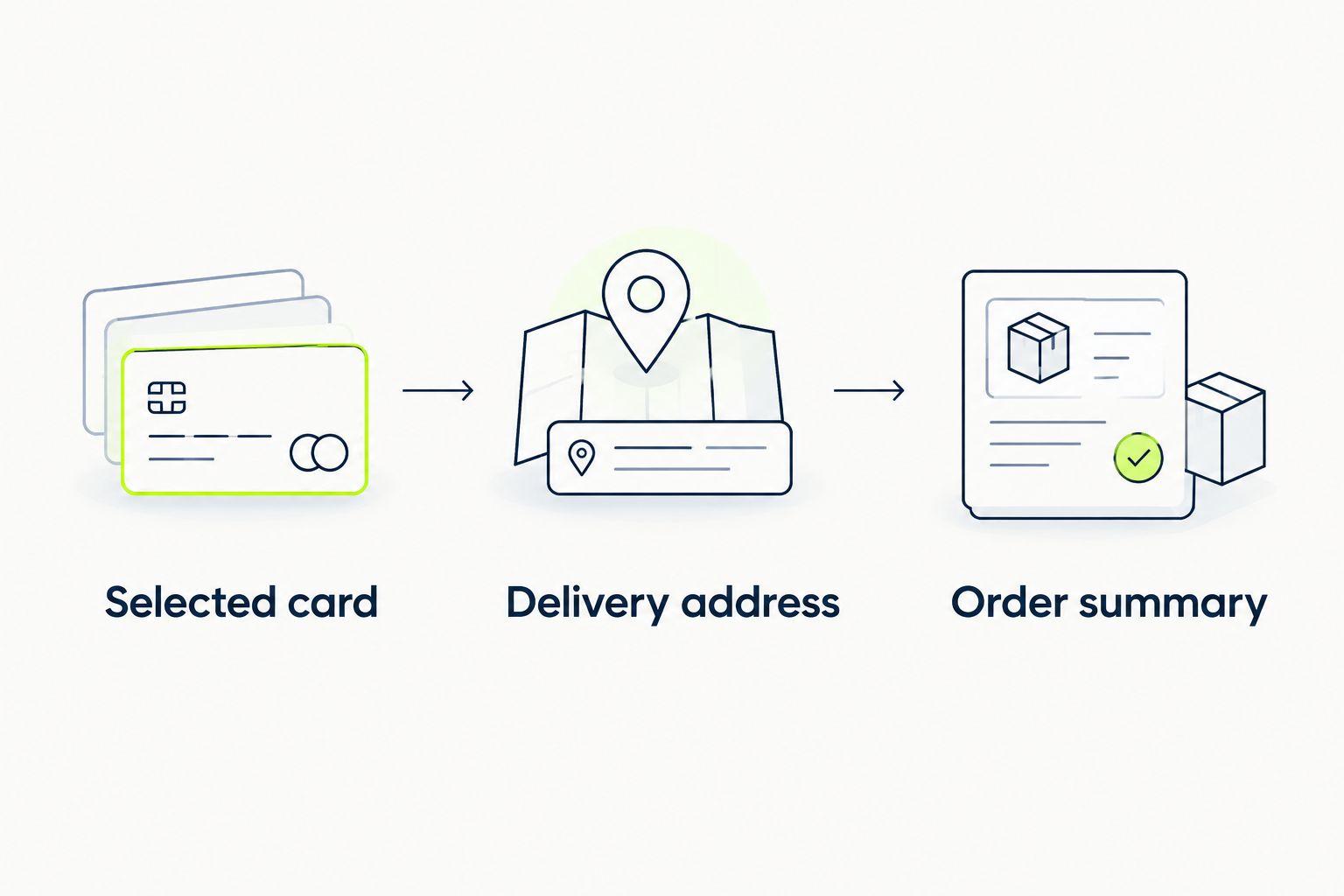
Pay particular attention when ordering a gift or shipping to a temporary address. A saved address makes selection quicker, but it can also carry an old destination into a new purchase if you accept it without reading.
YOUR ORDER CONFIRMATION
The payment step and the order-confirmation step serve different purposes. Finish the second before treating your purchase as complete.
- Allow the browser to return from the payment sheet. Avoid closing the tab while the checkout is processing.
- Look for an explicit order confirmation and save the order reference when one is provided.
- Check the email address used for the purchase and retain the confirmation message when it arrives.
- If the page stalls, inspect your confirmation messages and payment activity before attempting another purchase.
Expected result: You have a clear order reference or a specific unresolved payment state. Keep those states separate instead of assuming that every bank notification means a completed order.
A pending card authorization is not the same as a merchant order confirmation. If you see payment activity but cannot establish whether an order exists, contact the retailer through its published support options before submitting again.
Aim for 1 confirmed order, not repeated payment attempts. Retrying without checking the first result creates confusion about which attempt, payment, or reference you need to resolve.
USE GOOGLE PAY FROM A DESKTOP BROWSER
The adjacent workflow is paying from a computer rather than setting up an Android wallet. You still select a payment method through checkout; you do not pair the retailer with your phone as a separate setup task.
- Open the store in an updated desktop browser and build your intended cart.
- Enter checkout and select Google Pay if it is displayed.
- Sign in to the intended Google account when prompted, then select or add a payment method through the payment sheet.
- Review the address and order details, complete any authentication requested, and finish the merchant confirmation flow.
Expected result: You complete the purchase through the desktop checkout, provided that the payment method is offered and the transaction is approved.
For desktop shopping in 2026, a Google account session is not a store-account session. Signing into one does not establish that you are signed into the other. Check the purchase email independently so you know where to look for confirmation.
You also do not need to change contactless-payment settings merely to troubleshoot a web checkout. Online payment and tapping a phone at a physical terminal are different workflows.
TROUBLESHOOTING
GOOGLE PAY DOES NOT APPEAR
Check the actual payment stage, not just the product page. If you are inside a social app, open the store in an updated full browser and inspect checkout again.
If the button remains absent, use a displayed payment method. Installing Google Wallet does not force a retailer to offer Google Pay, and there is no shopper-side setting that enables a merchant payment option.
THE WRONG ACCOUNT OR CARD APPEARS
Check which Google account the payment sheet is using. Select the intended account or card through the controls presented before continuing.
Do not approve a purchase simply because a familiar card image appears. Read the identifying details and make sure the payment source belongs to you.
THE CARD IS DECLINED
Read the exact error message and check whether verification is incomplete or the issuer declined authorization. Resolve issuer-related problems with the issuer rather than repeatedly resubmitting the order.
Choose another displayed payment method only after checking whether the previous attempt produced an order confirmation. A different payment route does not erase an earlier transaction attempt.
THE SAVED ADDRESS IS WRONG
Check 2 addresses separately: delivery and billing. Delivery determines the shipment destination; billing information relates to the payment card.
Correct the relevant address before authorizing payment. Updating saved information afterward is not a substitute for correcting the order destination before purchase.
THE WINDOW CLOSES WITHOUT A CLEAR RESULT
Return to the merchant tab and check for an order confirmation. Review your email and card activity before trying again.
If the result remains unclear, retain the checkout message and transaction details for support. Never send a full card number, card security code, password, or verification code in a support message.
CUSTOMIZE YOUR WORKFLOW
Build a repeatable purchase routine: prepare the card, check the cart, review the wallet, and retain the order reference. Keep payment troubleshooting separate from questions about shipment progress.
After a confirmed purchase, use the order-tracking guide for the next stage. A payment wallet is not a replacement for the retailer's order and delivery information.
For your next TLF Apparel Google Pay checkout in 2026, review saved details again rather than assuming they remain correct. Moving home, replacing a card, or changing your preferred email makes that check especially useful.
FAQ
How do I connect TLF Apparel to Google Pay?
You do not need a separate store-to-Google integration as a shopper. Prepare an eligible Google payment method, then select Google Pay if the live checkout displays it.
Does TLF Apparel accept Google Pay in 2026?
Use the live checkout to establish whether Google Pay is offered for your purchase. A saved Google payment card or this setup guide does not establish current merchant acceptance.
Do I need Google Wallet to pay on a computer?
An Android Google Wallet app is not a universal requirement for desktop Google Pay checkout. Follow the Google Pay payment sheet shown by the participating website and use an eligible payment method.
Why is the Google Pay button missing at checkout?
A missing button means Google Pay is not displayed in that checkout session. Check the payment stage in an updated full browser; if it remains absent, choose a payment method actually offered.
Does Google Pay automatically connect my store account?
Google Pay is a payment method, not a store-account linking tool. Review the purchase email and store-account status separately from the Google account used for payment.
Can I use Google Pay without enabling contactless payments?
Online Google Pay checkout is separate from contactless payment at a physical terminal. Follow the web checkout requirements rather than changing phone tap-to-pay settings as a general fix.
What should I do if Google Pay shows a pending payment but no order?
Check the merchant page and confirmation email before retrying payment. A pending card authorization alone does not establish that an order was completed; contact the retailer if the result remains unclear.
ONE LAST THING
The most useful checkout shortcut is an accurate saved address. A ready wallet removes typing, but it does not decide where this particular purchase should go. Read the destination before every authorization—even when everything else looks familiar.


